Sharing Your Videos
Learn how to share game highlights, player ratings, and stats, as well as how to tag players in your matches. This guide walks you through adding player names, linking them to profiles, and sharing results so teammates, coaches, or friends can view and analyze the match together.
📍Quick Start Summary
Player tagging lets you identify each player by name or email.
Recently tagged players appear in your Friends list so they are easier to tag again.
Tagging by email can link the game to that player’s PB Vision account.
Shared links let teammates, coaches, and friends view the game without needing a subscription.
The video owner can edit or remove player tags after tagging.
⚠️ Important: Only the person who uploaded the video can tag or untag other players. If someone else uploaded your game, you can tag yourself using "This is me" but cannot edit other players' tags.
📸 Video Walkthrough
📤 Sharing Your Videos
We know how exciting it is to not only play pickleball, but also share the stats and insights that come from your matches. Sharing your games makes it easy to send videos and data to teammates, coaches, and friends so they can see the action, tag themselves, and follow along with the same details you do. Whether it’s celebrating great shots, breaking down rallies, or simply showing off your love of the game, it is simple to share both the match and the story behind it.
Sharing Folders
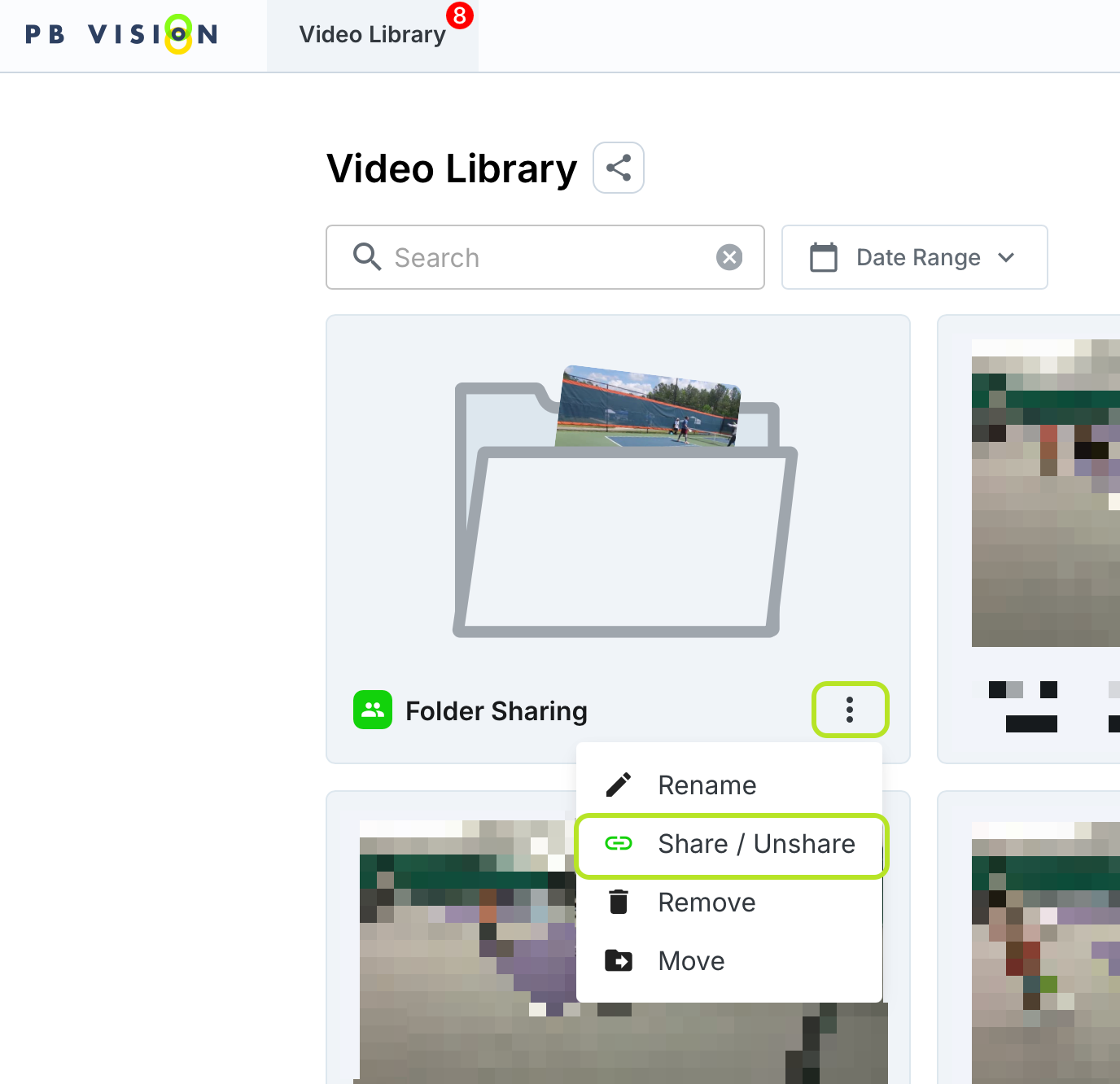
If you play in a league or have a regular group of friends you compete with, folders make it easy to keep everything in one place. You can add multiple match videos to a single folder and share them all at once through one link. When adding new games later, that same shared link will update so everyone can come back and see the latest matches without needing a new link each time.
On the video library, you can select the Options Menu > Share / Unshare
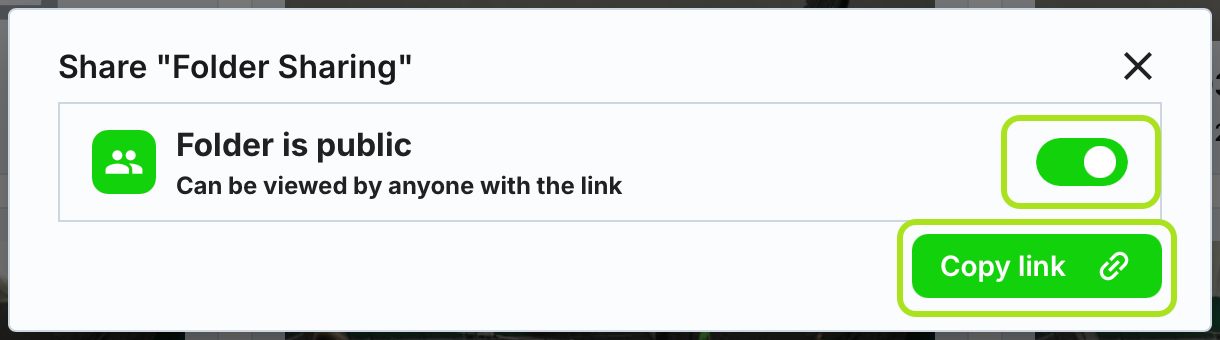
You can toggle sharing on (green) or off (grey) and copy the link to share with others
Sharing Individual Games
Sharing a single game is perfect when you’re playing with someone new or with friends who don’t play as often. Instead of a whole folder, you can simply share that one match so they can watch, tag themselves, and enjoy the stats. It’s a great way to introduce others to PB Vision and share the excitement of a single game experience.
From The Side Menu
You can hover over the side menu to expand it
Here you can select Share This Game
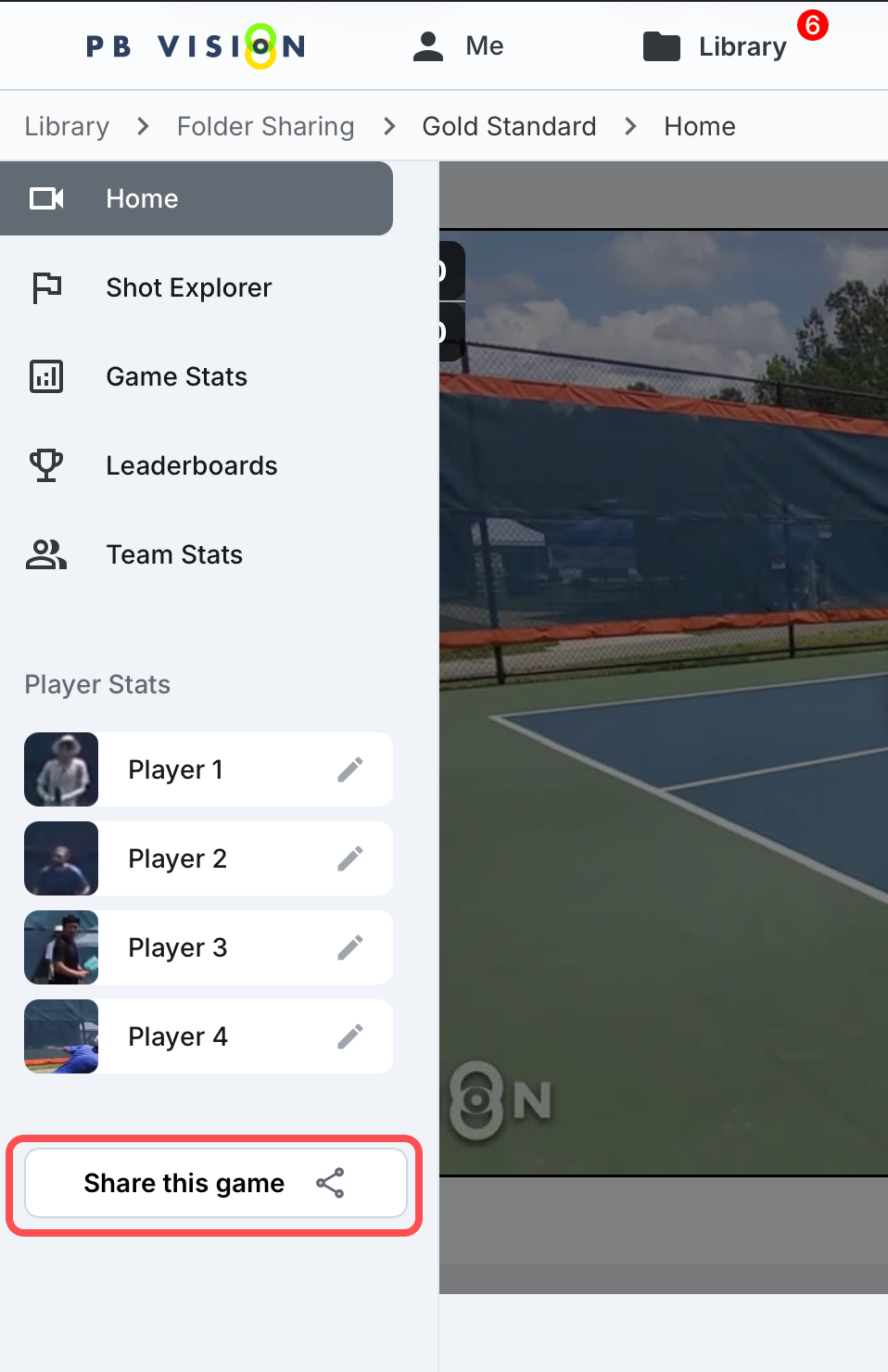
This will copy the link to the game to your clipboard or open your phones sharing options
From The Video Toolbar
When viewing different pages, using the share option at the top of the video toolbar will allow you to copy the link to the page you are viewing. This is helpful to show others the exact page you are using.
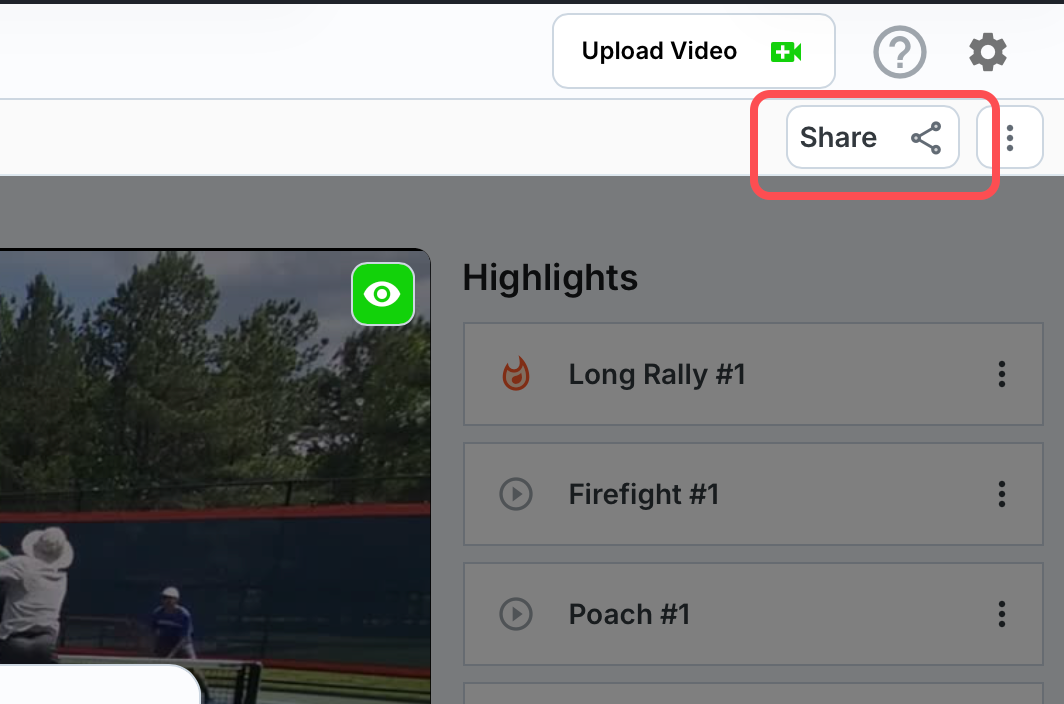
This will copy the link to the game to your clipboard or open your phones sharing options
🏷️ Player Tagging
Player tagging lets you identify who played in a match by adding their name or email. Tagging by email links the match directly to that player’s PB Vision account, so they can view the video, stats, and match data in their own library.
Video Owners
Video owners are the users who originally uploaded the . As the uploader, they have full control over tagging themselves and other players in the match, either by name or by email.
Tagging Yourself
A prompt appears when the video first opens that asks you to tag yourself.
You can select yourself as a player in the match
If you didn’t play in the match, you can select I’m not in this video
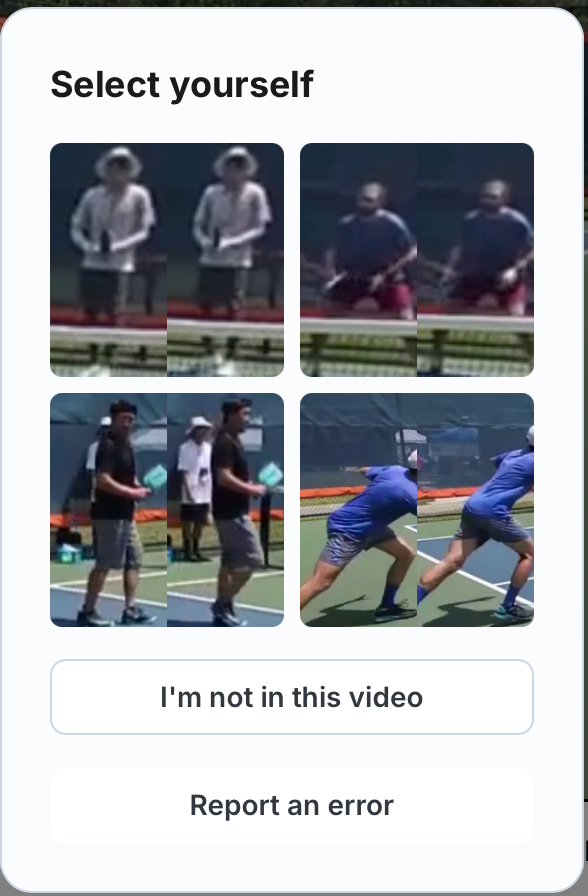
Tagging Other Players
To begin tagging other players, select the ✏️ icon beside the player you want to tag.
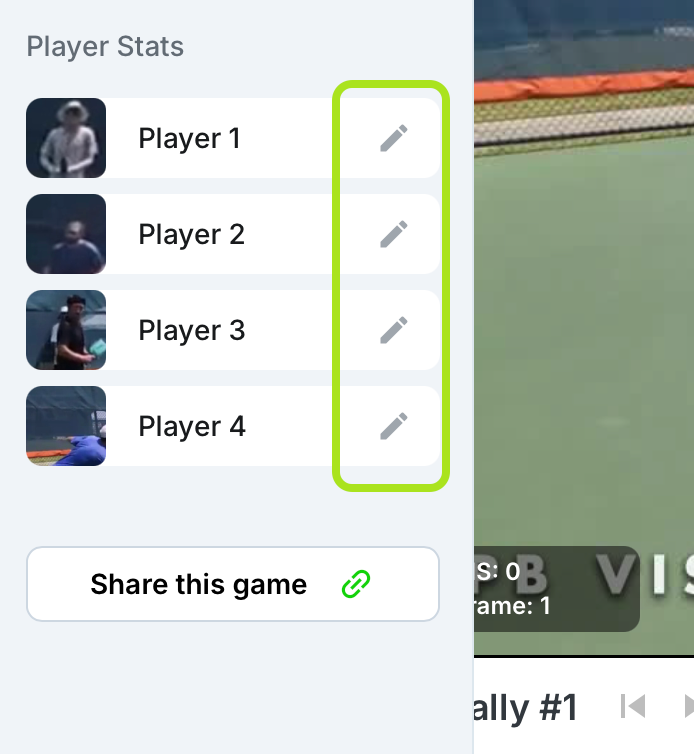
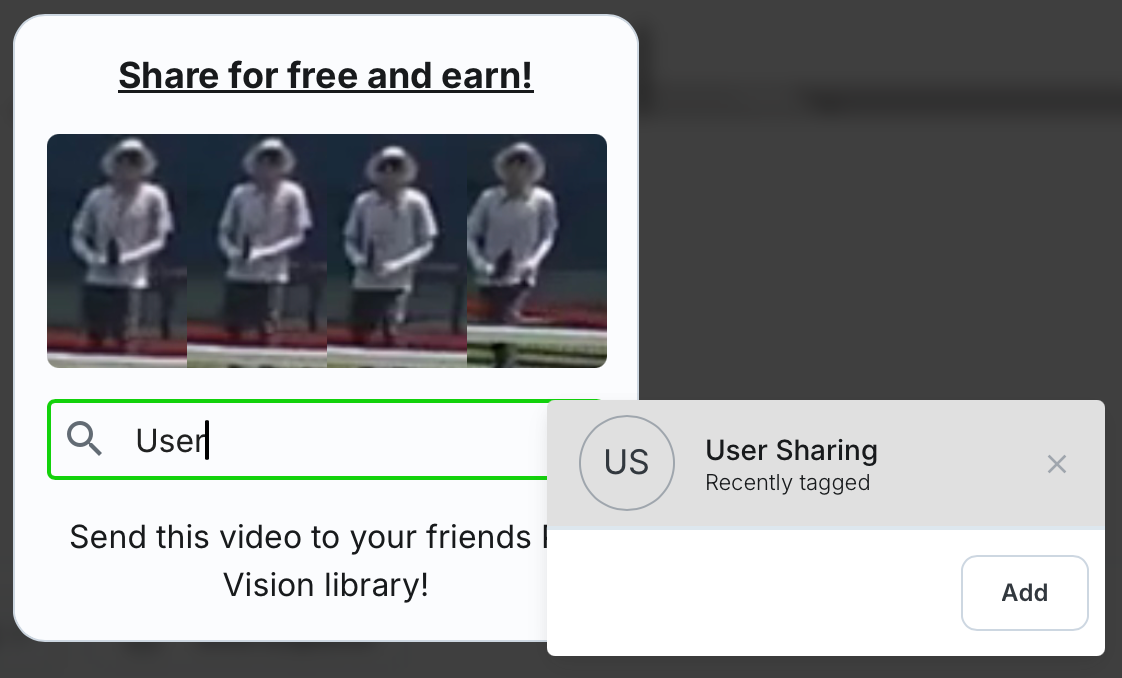
Enter the name of the user you would like to tag.
If you recently tagged them, they will appear on the right-hand side of the tagging prompt.
Select Add if you are tagging a new player or tagging a player by a new email address
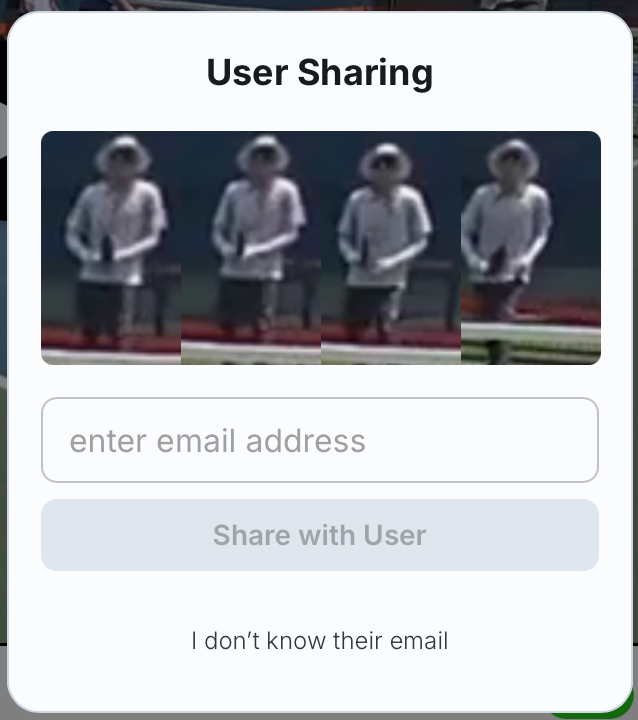
It will prompt you to enter the email address of the user you are sharing the video with.
If you don’t know their email, you can select I don’t know their email to continue.
Once tagged, you will see a few different confirmations depending on how you tagged the player.
By Email
If they have an existing account, it will link the video directly to their account.

If they don’t have an existing account, it will send an invitation to create their free account.

By Name
Since we can’t link the video to an account, it will show the following message.

Non-Video Owners (Not Logged In)
Non-Video Owners (Not Logged In) are users that did not upload the original video and are not logged into PB Vision. You can see players tagged by email, but if a player is tagged only by name or is untagged, you’ll be prompted to sign in or create an account to view that player’s stats.
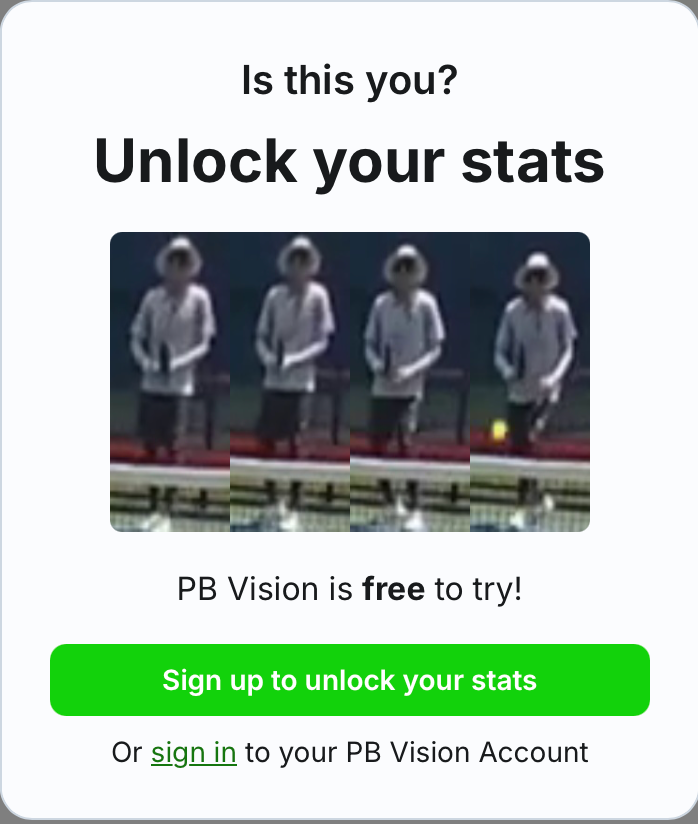
If you don’t have an account, you can select Sign up to unlock your stats to create a free account. (No Credit Card Required)
If you have an account, login and follow the steps below to tag yourself.
Non-Video Owners (Logged In)
Non-Video Owners (Logged In) are users that did not upload the original video but are logged into PB Vision. If you are an untagged player in the match, you can tag yourself following the steps below.
Tagging Yourself
Once logged in, select your player from the side menu
Click This is me
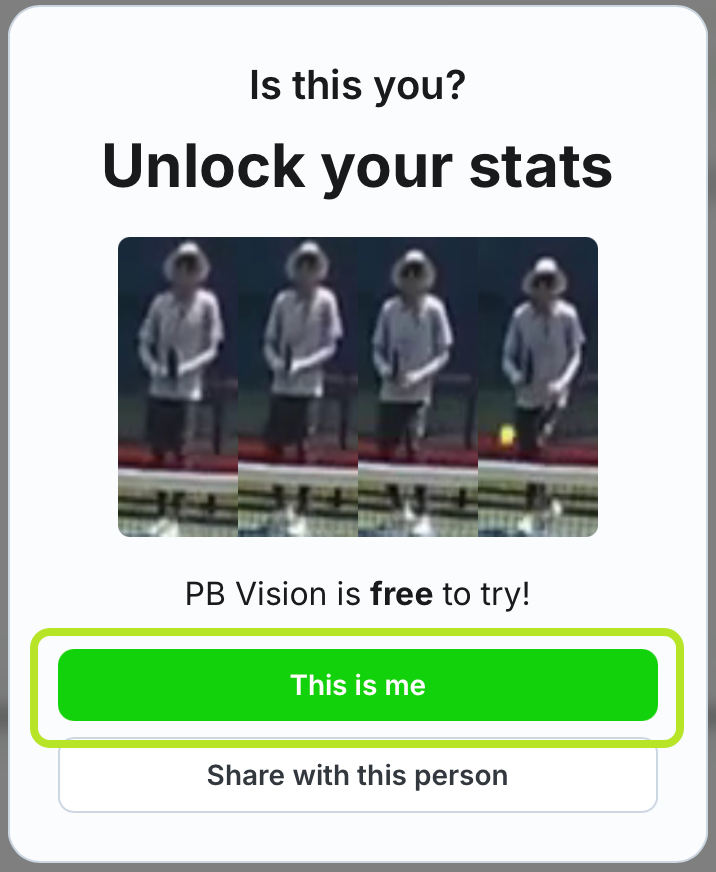
This will do the following actions
The video will appear in your video library so you have access to view it without needing the shared link.
Your display name will now show
Unlock your stats
Sharing Others Stats
Once logged in, select the player whose stats you would like to share and view
Click Share with this person
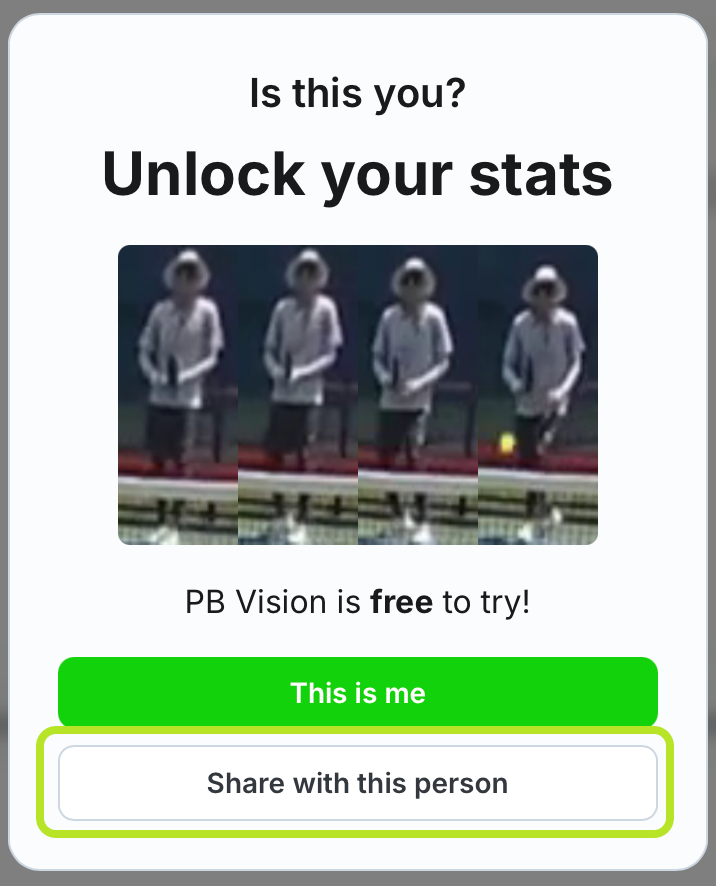
This will do the following actions
Copies the link to your clipboard so you can share with others

Unlock the player stats for you to view
Editing or Removing Player Tags
Video owners can edit a player’s tag from the player controls on the game. Use Edit when you need to update a display name or email, and Remove/Untag when the wrong player was linked. If a player is linked to an existing PB Vision account, some account-owned details may not be editable by the video owner.
Video Owners
Video owners are the users who originally uploaded the . As the uploader, they have full control over tagging themselves and other players in the match, either by name or by email.
From your video library, open the video where you would like to untag a player
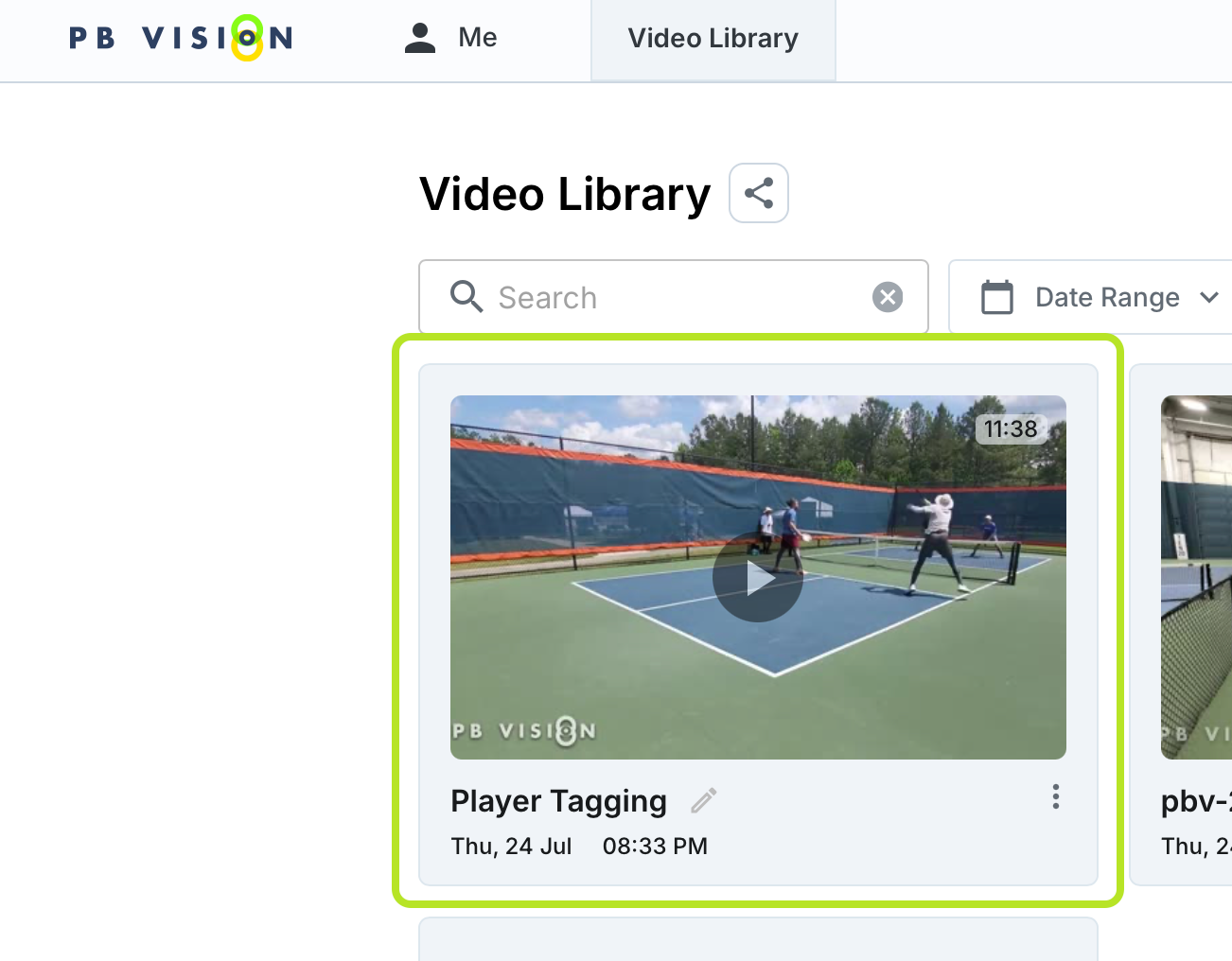
Open the side menu and select the X beside the player you want to untag
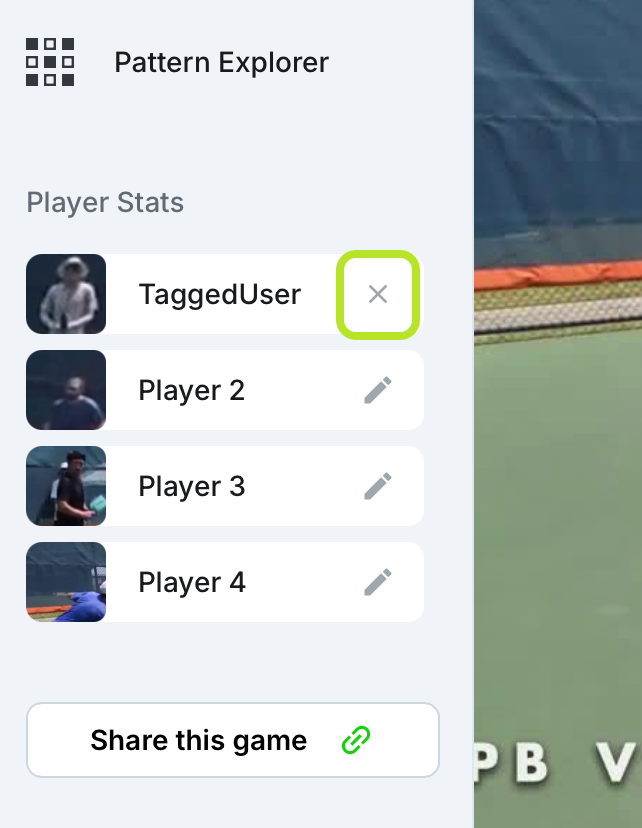
A new dialog will appear, select Untag Player
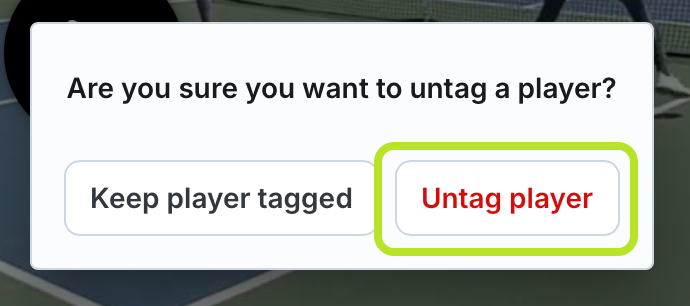
You are now ready to tag another player (Player Tagging - Video Owner)
Non-Video Owners (Logged In)
Non-Video Owners (Logged In) are users that did not upload the original video but are logged into PB Vision. If you are a tagged player in the match, you can untag yourself following the steps below.
From your video library, open the video where you would like to untag yourself
Open the side menu and select the X beside your player
NOTE: You will only see the X beside your player. You can’t untag other users from the video
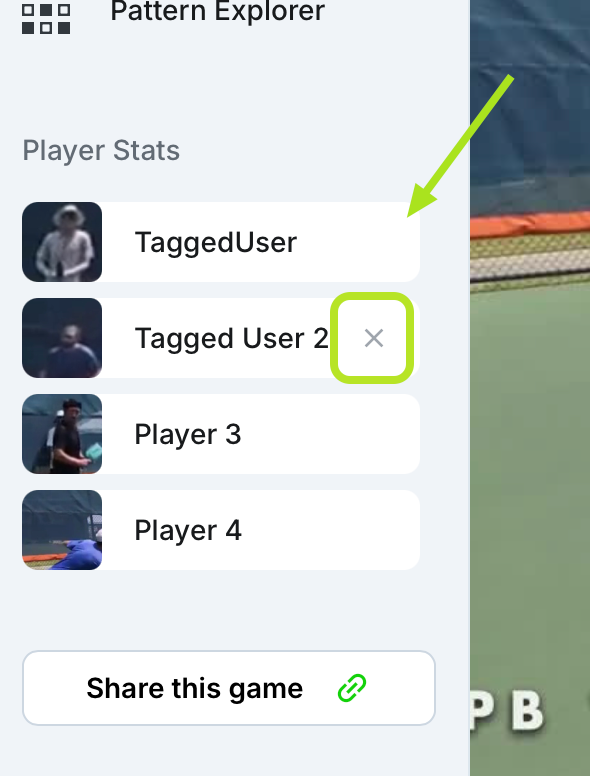
A new dialog will appear, select Untag Player
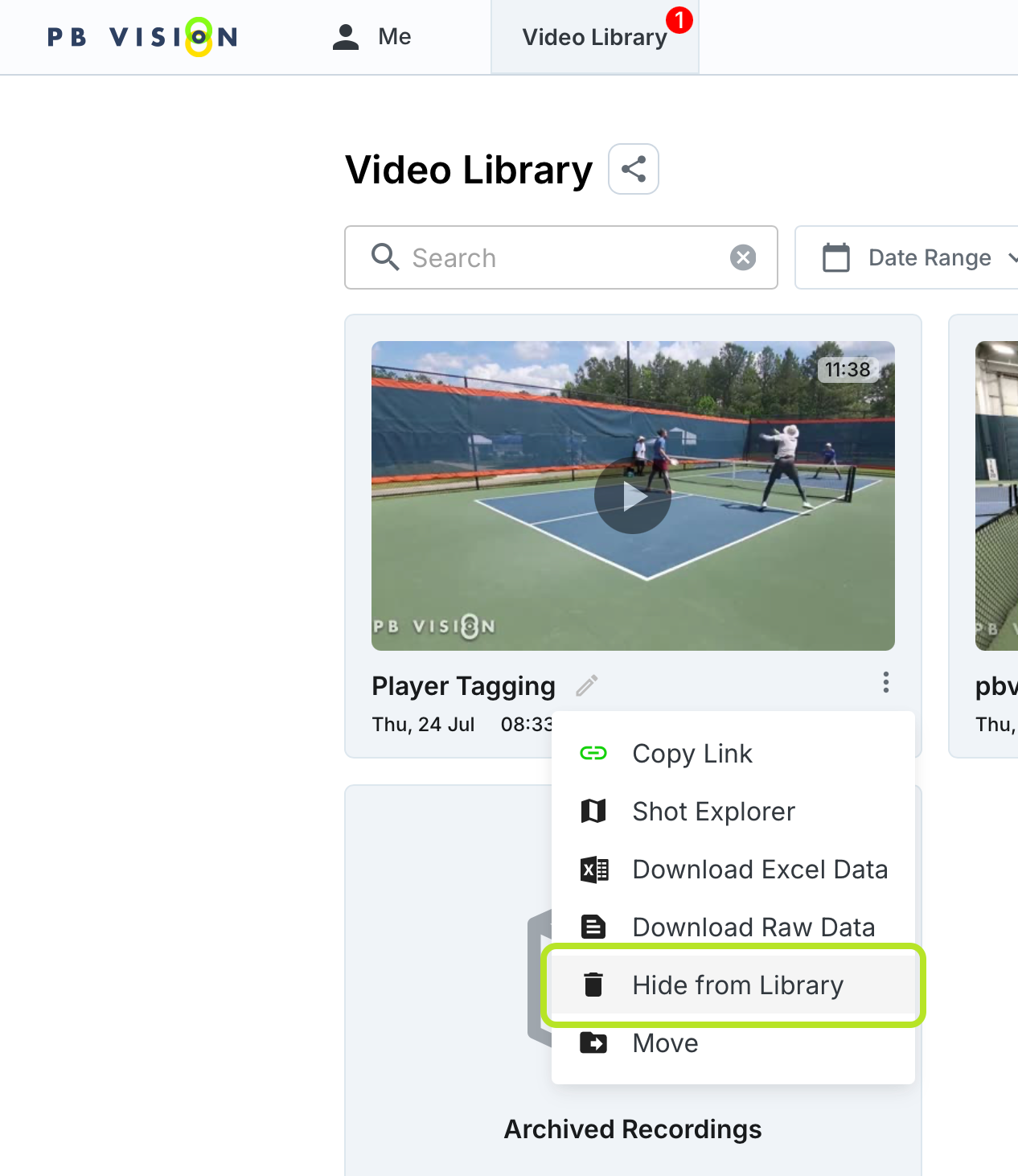
You should no longer be tagged in the video. The video will still appear in your video library, but you can remove it from your library by hiding it from your Video Library.
🔍 Frequently Asked Questions
Can I change a player's name after tagging?
Only the video owner can edit player tags. Open the player tag controls, choose the player, and select Edit to update the tag. If the wrong PB Vision account was linked, remove the tag and tag the correct player again.
Why can't I see another player's stats?
If the player was tagged by name only (not by email), their stats may be locked. To unlock them:
The player can log in and claim their stats by clicking "This is me" on the match
Alternatively, you can click "Share with this person" to generate a link that unlocks viewing for that player
Players tagged by email will have their stats linked automatically.
Do tagged players need a subscription?
No. A tagged player can create a free PB Vision account to view a shared game's video, per-game stats, and unlocked player stats for that match.
A subscription is needed to upload and process additional videos, use minutes, build long-term trends, and get cross-game profile features. In short: shared game access can be free, but ongoing analysis and personal trend tracking require a subscription.
The shared link isn't working
A few things to check:
Mobile browser issues — Some mobile browsers have trouble with shared links. Try opening the link in a desktop browser or the PB Vision app.
Sharing may be turned off — The video owner may have disabled sharing for this video. Ask them to re-enable it from their library (Options Menu → Share / Unshare).
Link format — Make sure the full URL was copied. Partial links won't work.
⁉️ Looking For More?
If you still have questions or run into issues, check out our Contact Us guide for the best way contact us for more information!