Discuss with AI Chat Feature Guide
Learn how to analyze your PB Vision matches using AI assistants such as ChatGPT, Claude, Gemini, and other MCP-compatible platforms. This guide covers both downloadable AI chat files and direct MCP integrations for advanced workflows.
📍 Quick Start Summary
PB Vision offers two ways to analyze your matches further with your favorite AI chat agents
📥 Download Chat
Works with ChatGPT, Claude, Gemini, and most AI assistants
No setup required
Download a chat file and upload it to your preferred AI tool
🔗 MCP Connection
Connect AI assistants directly to PB Vision
No manual downloads required
Best for users familiar with MCP-compatible platforms
🌱 Download Chat File
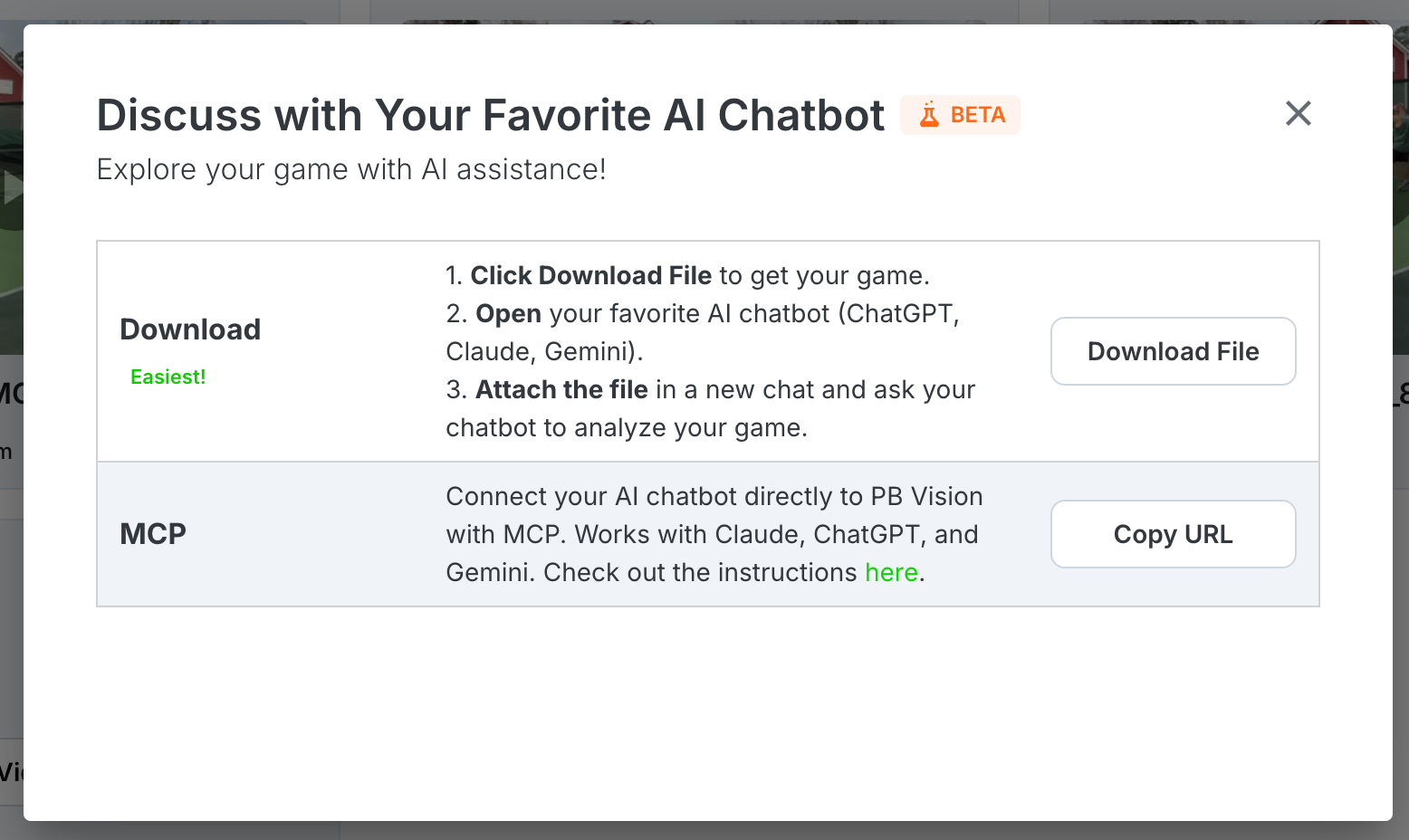
This works with any AI chatbot, free or paid, including ChatGPT, Claude, Gemini, and others.
How It Works
Open any processed game in PB Vision and select Discuss with AI Chat.
Download the generated data file.
Open your preferred AI assistant, such as ChatGPT, Claude, or Gemini.
Upload the downloaded file and ask a question about your match.
📝 Recommended Prompt
I am [Player Name]. Analyze this match and identify my strengths, weaknesses, and areas for improvement.
The AI will use your PB Vision data to provide personalized insights and answer questions about your performance.
Single Game
Generate a chat file for an individual match. This option includes match statistics, player ratings, shot analysis, and performance insights for a single game.
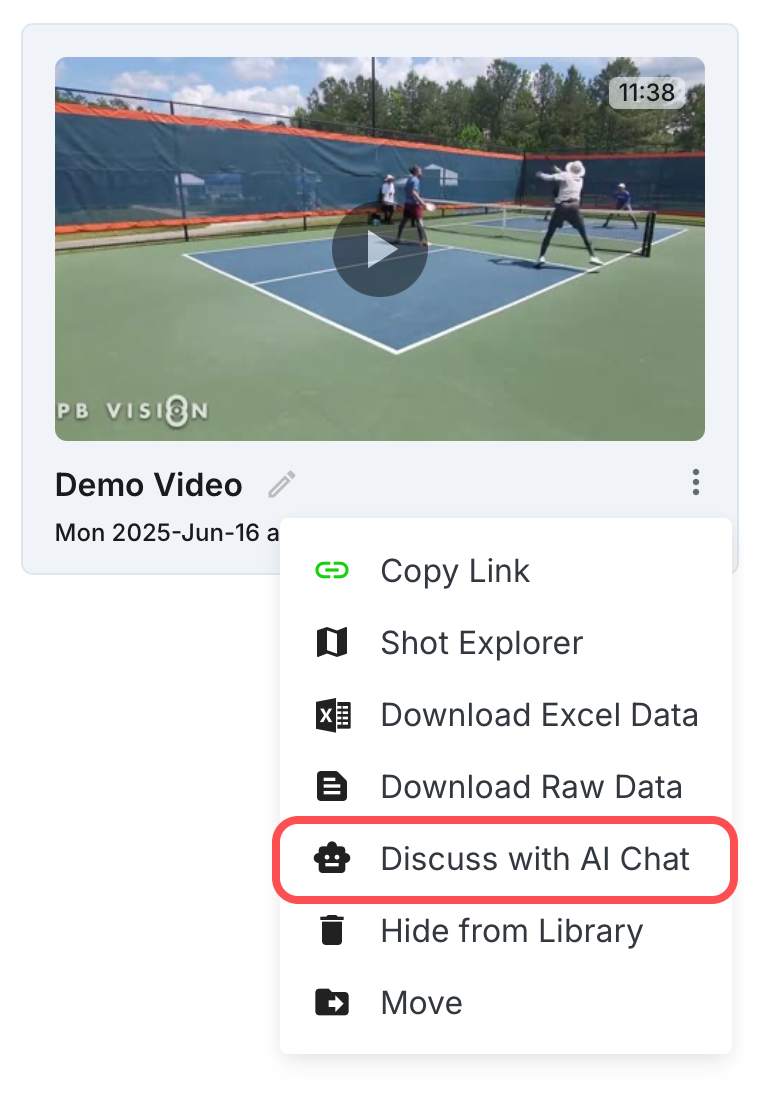
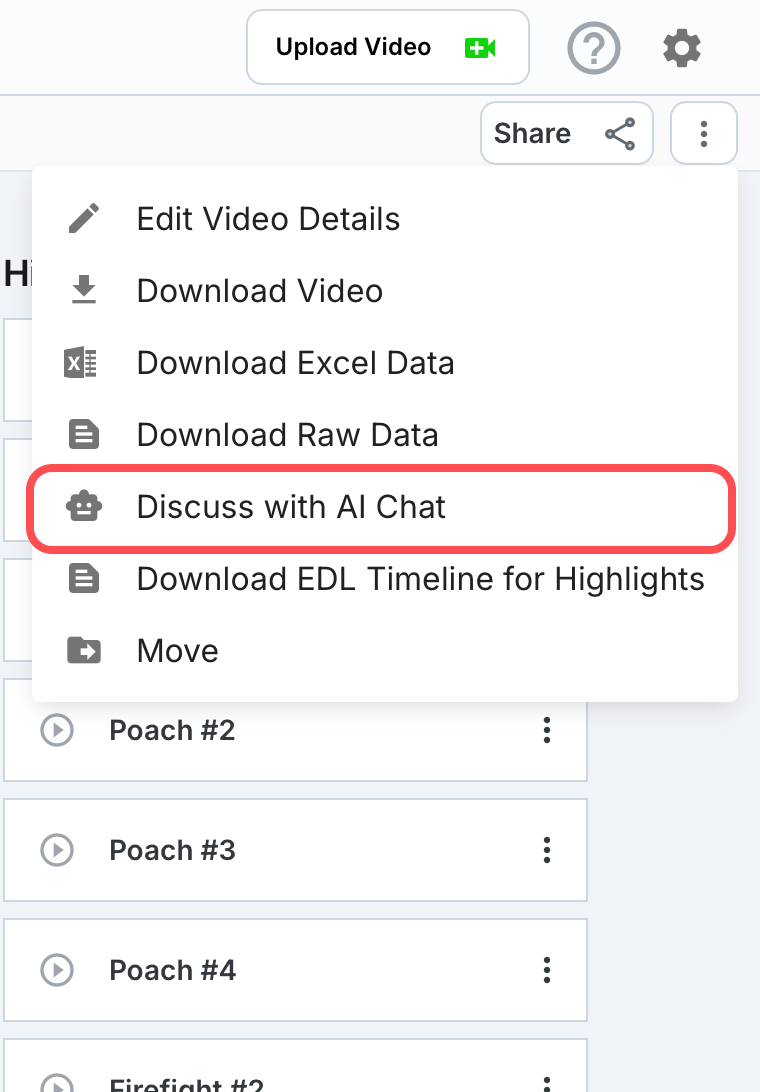
To get started, open the bubble-dot menu from either your Video Library or an individual video and select Discuss with AI Chat.
From Video Library
From Video
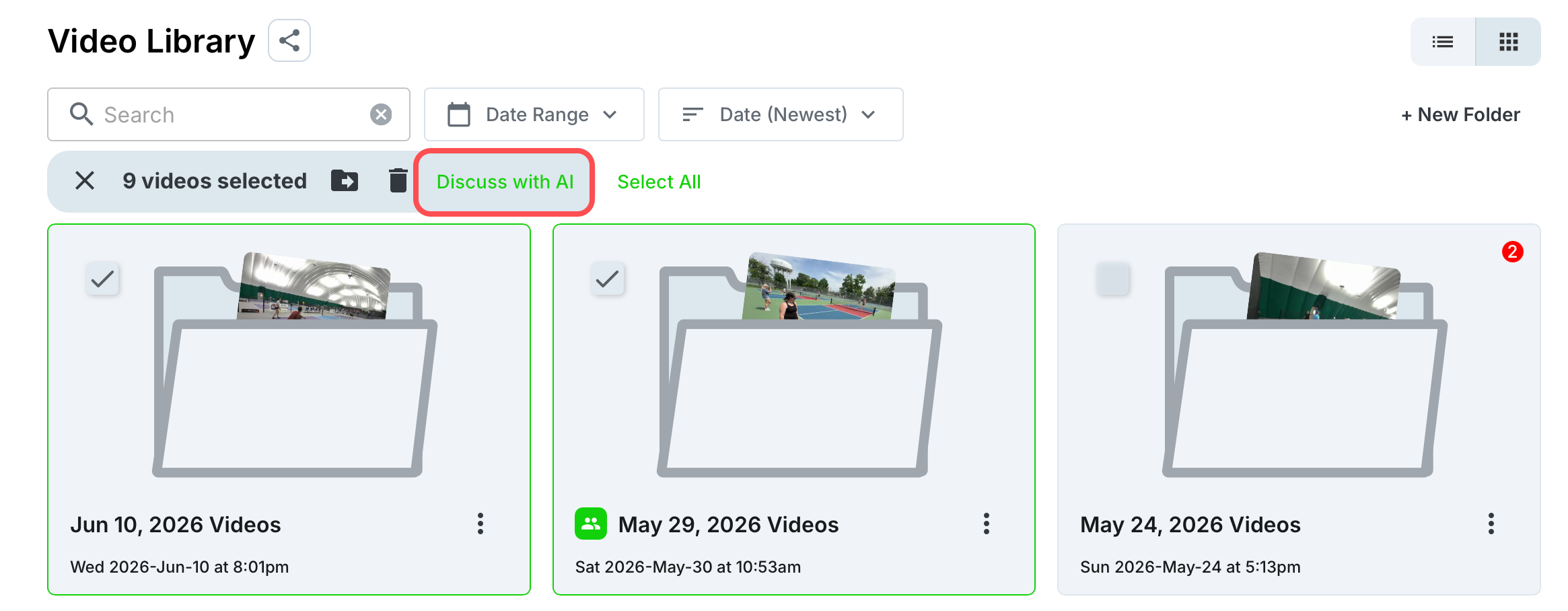
Multi-Game
Generate a chat file using multiple matches, selected videos, or an entire folder. From the Library, select multiple videos/folders and choose Discuss with AI, or open a folder’s menu and choose Discuss with AI Chat. Folder analysis includes visible processed sessions in that folder, including multi-session videos.
If the option is disabled, the folder may have no processed visible sessions or may exceed the current 20-session AI chat limit.
Tips for Best Results
Use File Uploads
Attach the downloaded chat file directly to your AI assistant instead of copying and pasting the contents. Large match files may exceed text limits when pasted manually.
Ask Focused Questions
For longer matches, consider asking about specific areas such as serves, returns, third shots, or unforced errors. Focused questions often produce more detailed insights.
Note - Longer games can use more tokens from your AI chat agent.
Most AI Assistants Are Supported
The downloaded file can be used with ChatGPT, Claude, Gemini, and other AI assistants that support file uploads. Paid plans may support larger files and provide more comprehensive responses.
Tagged Player Names Are Included
If players are tagged in PB Vision, their names will be included in the exported data, allowing the AI to reference them throughout the analysis.
Video Walkthroughs
🧠 MCP Setup
MCP (Model Context Protocol) allows supported AI assistants to access your PB Vision game data directly. Instead of downloading and uploading chat files, you can connect your AI client to PB Vision and analyze matches on demand.
This option is best for users who want a more streamlined workflow and are comfortable configuring AI tools.
Requirements
An AI client that supports MCP servers or custom connectors (such as ChatGPT, Claude Desktop, Cursor, Gemini CLI, or Gemini Code Assist).
A PB Vision account with uploaded and processed games.
Connect to PB Vision
Note - If your client allows configuring the HTTP method, ensure it is set to POST.
No API keys or authentication are required. Simply copy the MCP URL below and add it to your supported AI platform.
MCP URL
https://share.pb.vision/mcp
Claude (Desktop)
Note - You'll need a paid Claude plan (Pro or Max).
Quick Steps
Open Claude Desktop → Select the “+” button → Connectors → Add a custom MCP connector → Paste the PB Vision MCP URL → Complete setup and begin chatting.
ChatGPT
ChatGPT works well with the downloaded chat file. We do not currently provide customer-facing ChatGPT MCP setup steps in this guide, so use the Download Chat flow for ChatGPT until this section is updated.
Gemini Advanced (CLI)
Note - Gemini CLI must be installed locally on your machine. You’ll also need a Google Gemini subscription that supports Code Assist features.
Connect PB Vision directly to Gemini CLI using MCP. Once connected, Gemini can access your PB Vision match data and analyze games without requiring file downloads.
Quick Steps
Open the Gemini settings file → Add the PB Vision MCP server configuration → Launch Gemini CLI → Verify the connection → Start analyzing your PB Vision data.
Gemini Code Assist (VS Code)
Note- Gemini Code Assist must be installed and enabled in VS Code, and you must be signed in to a Google Gemini subscription that supports Code Assist features.
Connect PB Vision directly to Gemini Code Assist within Visual Studio Code. Once connected, Gemini can access your PB Vision match data and answer questions without requiring file downloads.
Quick Steps
Open your Gemini settings file → Add the PB Vision MCP server configuration → Reload VS Code → Enable Agent Mode → Verify the connection → Start analyzing your PB Vision data
🎯 Using PB Vision with MCP
Once connected, your AI assistant gains access to several PB Vision tools that can retrieve match data, identify players, and analyze performance.
Available MCP Tools
Once connected, your AI assistant gets access to five tools:
How to Use MCP
Find Your Video ID
Your video ID is the 12-character code found in your game URL.
Example Game URL
https://pb.vision/video/ox31i0pijbzo/0/overview
Video ID
ox31i0pijbzo
Example Prompts
Break down my play from game ox31i0pijbzo
Analyze my serve performance in game ox31i0pijbzo
Compare my stats across games ox31i0pijbzo and 93vkk5bap5he
The AI will use PB Vision tools to retrieve match data and provide analysis.
MCP Tips
Start with the Analysis Guide
If the AI seems unsure how to interpret your data, ask it to run the analysis guide first.
Multi-Game Analysis
Provide multiple video IDs to compare performance across games.
Large Games
For longer matches, use download-based analysis tools when available to reduce token usage.
MCP Troubleshooting
Connection Failed or No Tools Appear
Verify that your MCP client is configured to use POST requests instead of GET. If you’ve recently added the PB Vision MCP server, restart your AI client and try again.
AI Cannot Access Match Data
Confirm that you’re using the correct 12-character video ID from your PB Vision game URL.
Example Game URL
https://pb.vision/video/ox31i0pijbzo/0/overview
Video ID
ox31i0pijbzo
Responses Are Incomplete or Cut Off
Long matches can generate large amounts of data and may exceed your AI platform’s context limits.
For longer games:
Ask the AI to use
get_download_urlFocus on specific aspects of the match (serves, returns, drops, etc.)
Analyze one game at a time
⁉️ Need Help?
This feature is in beta and we're actively improving it. If you run into issues or have feedback:
Email: support@pb.vision
Discord: Join our community
Feature requests: Vote and submit ideas